
SAP Alert Notification service for SAP BTP is a key component of the SAP BTP DevOps portfolio, and it’s designed to provide operational teams with real-time, actionable insights across cloud-native and hybrid landscapes.
The service provides a centralized API that allows service providers to publish alerts and enables consumers—such as administrators, developers, and external systems—to subscribe to and receive these alerts. The service’s core functionality is the automated notification of technical and operational events that are relevant to business continuity and system health. The service can send these alerts via multiple channels, including email, Microsoft Teams, Slack, webhooks, and incident management tools. A major strength of the service is its standardized, environment-agnostic model, which ensures consistent configuration across all SAP BTP services. This allows organizations to apply unified monitoring and alerting strategies, regardless of the underlying architecture or runtime environment.
SAP Alert Notification service for SAP BTP primarily collects critical technical information from SAP BTP services, such Cloud Integration, Kyma, and Cloud Foundry. However, you can also extend it to support custom scenarios within your own applications.
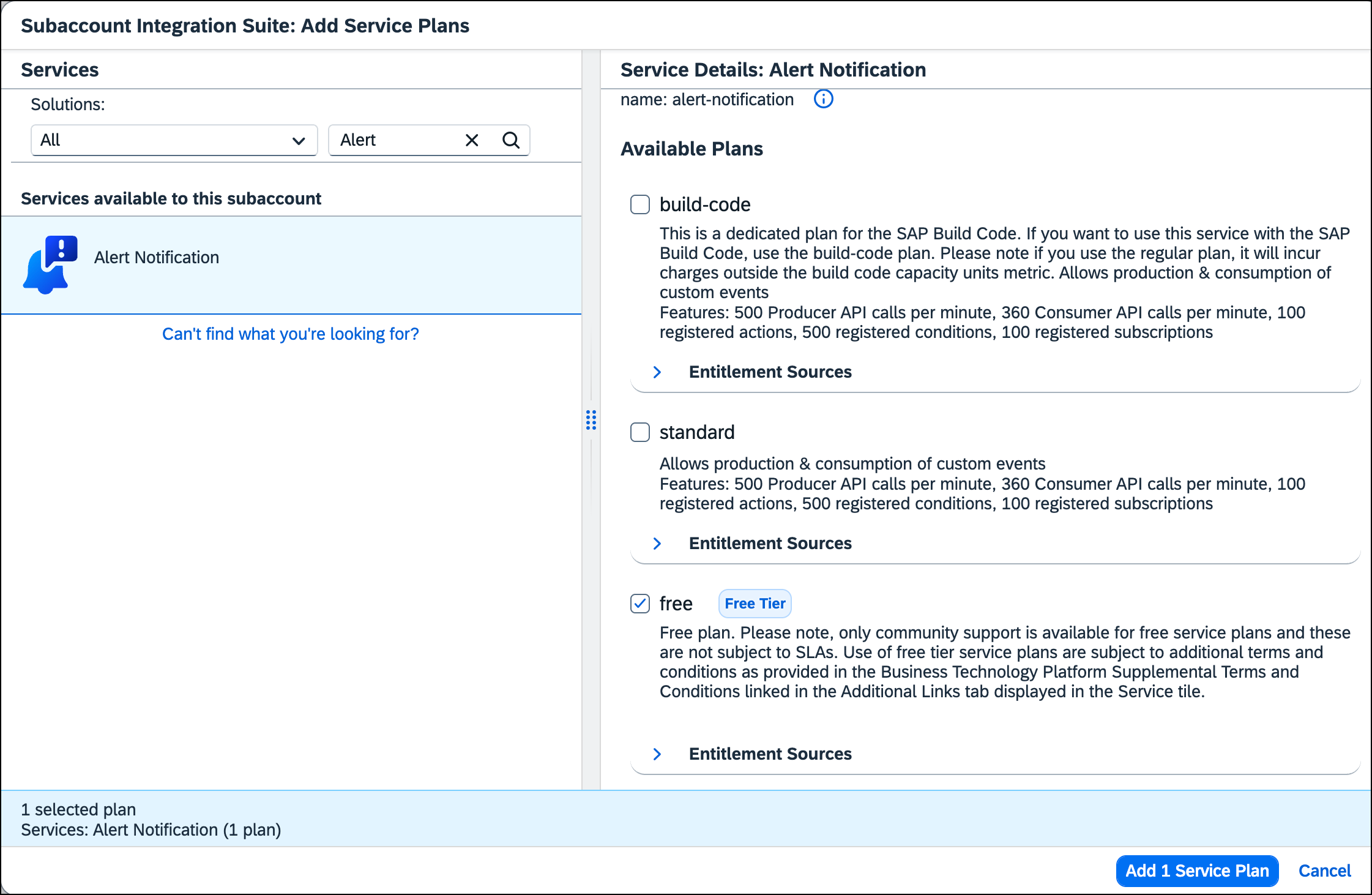
Before you can use SAP Alert Notification, you must add it to the subaccount you want. To do this, open the service assignment in the SAP BTP cockpit of the global account, search for “Alert” under Solutions, and select Alert Notification, as shown below. In addition to the paid standard plan, you can test the entire service in the free tier. Add the service plan you want by selecting it and clicking Add 1 Service Plan.
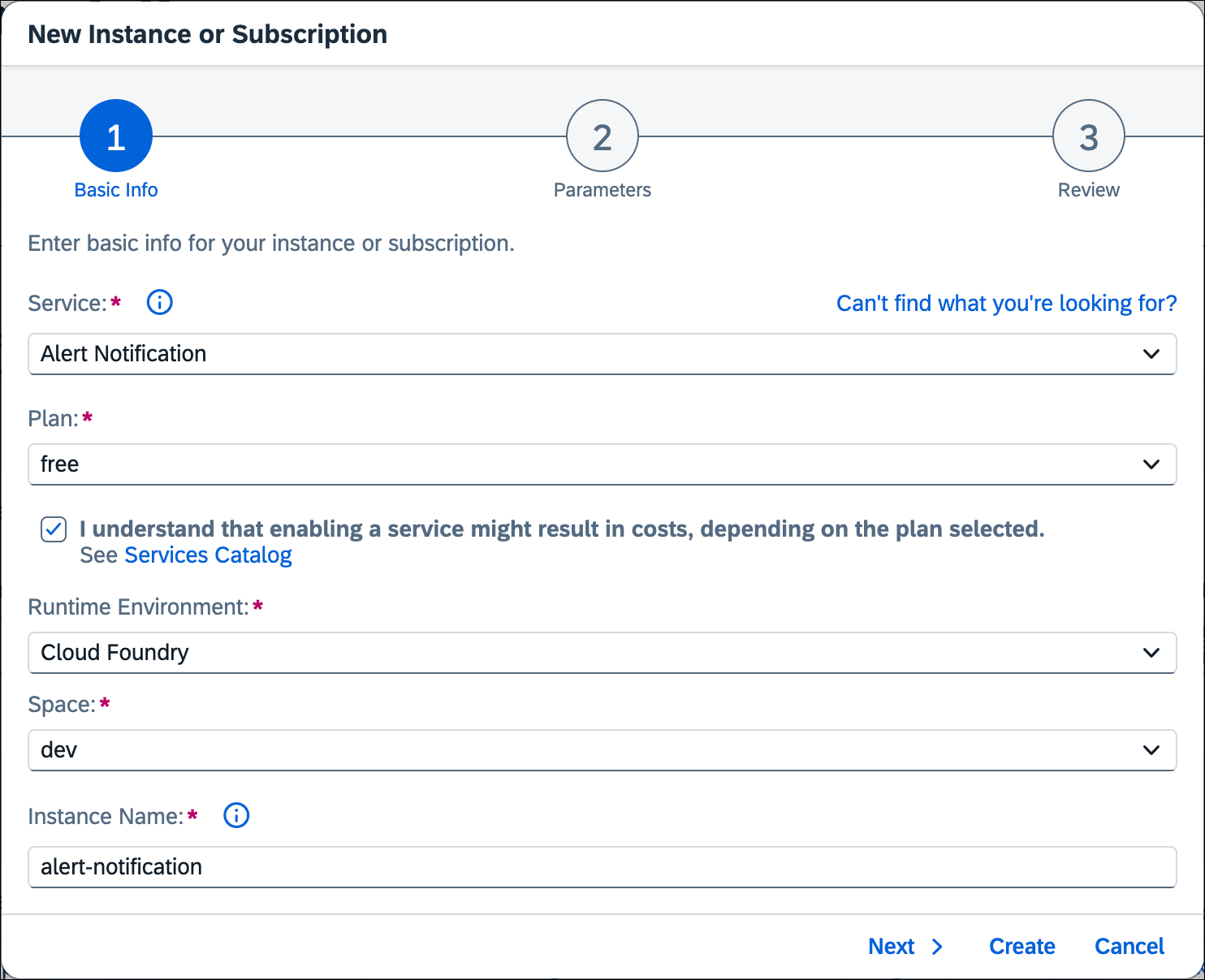
Then, switch to the subaccount and create a new service instance as usual. Select Alert Notification as the Service and Plan you previously added, select Cloud Foundry as the Runtime Environment, and assign an existing Space. Enter a meaningful name in the Instance Name field and then click Next.
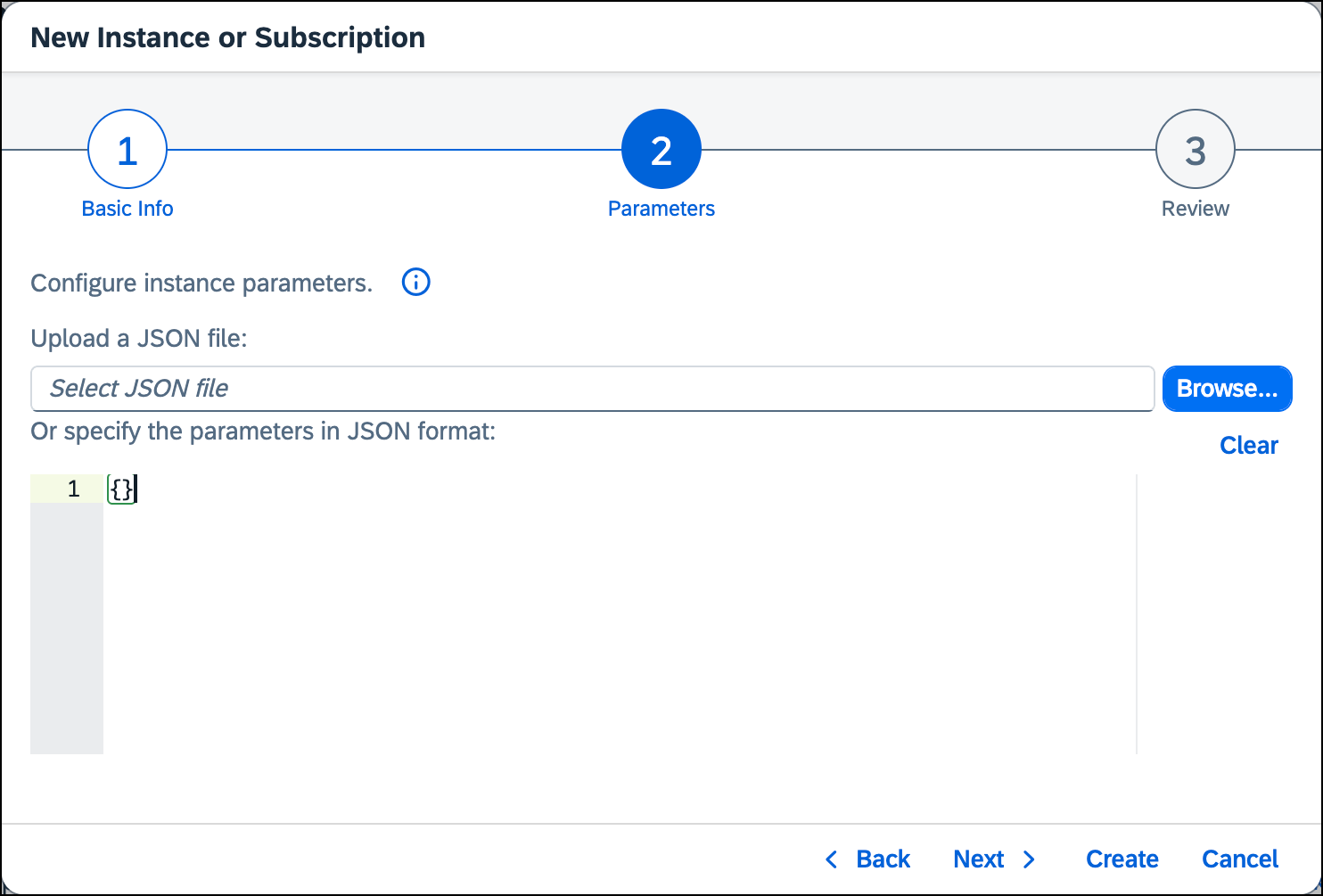
If you don’t want to change any of the parameters, leave them as they are and click Next (see next figure). Then, in the Review section, check the settings you’ve made and create the service instance by clicking Create.
Next, create a service key for this service as shown in the figure below. This contains the credentials required to call the service from the iFlow.
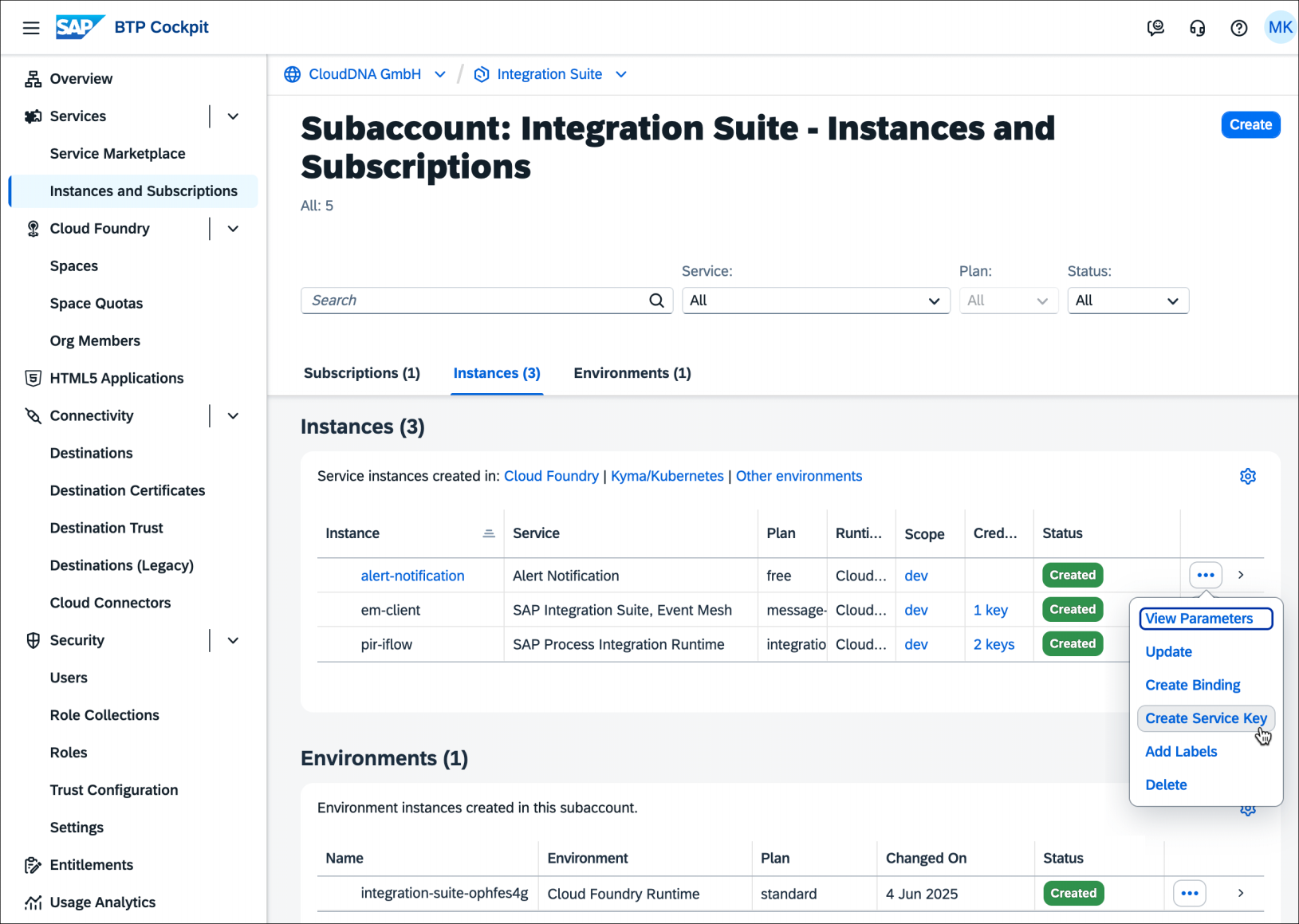
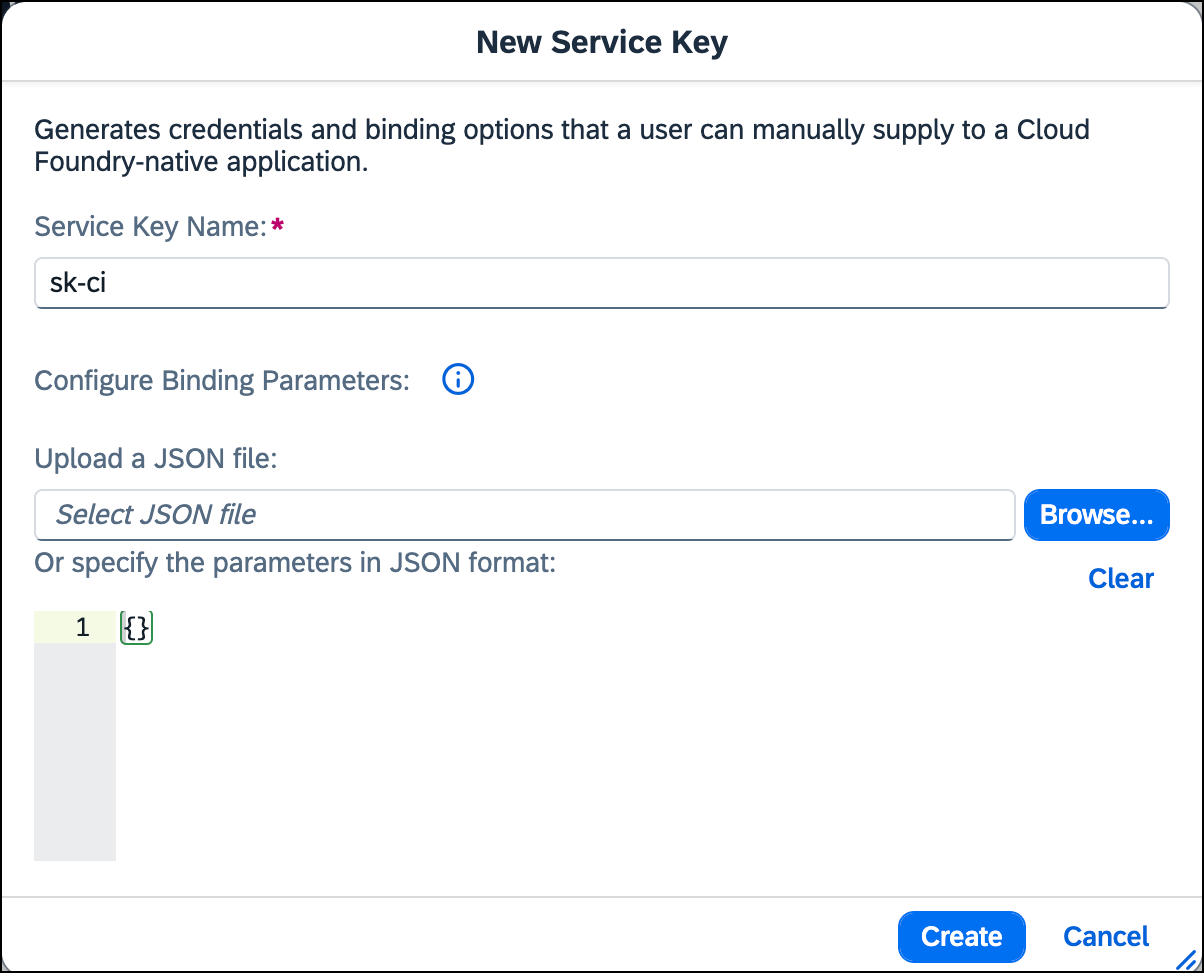
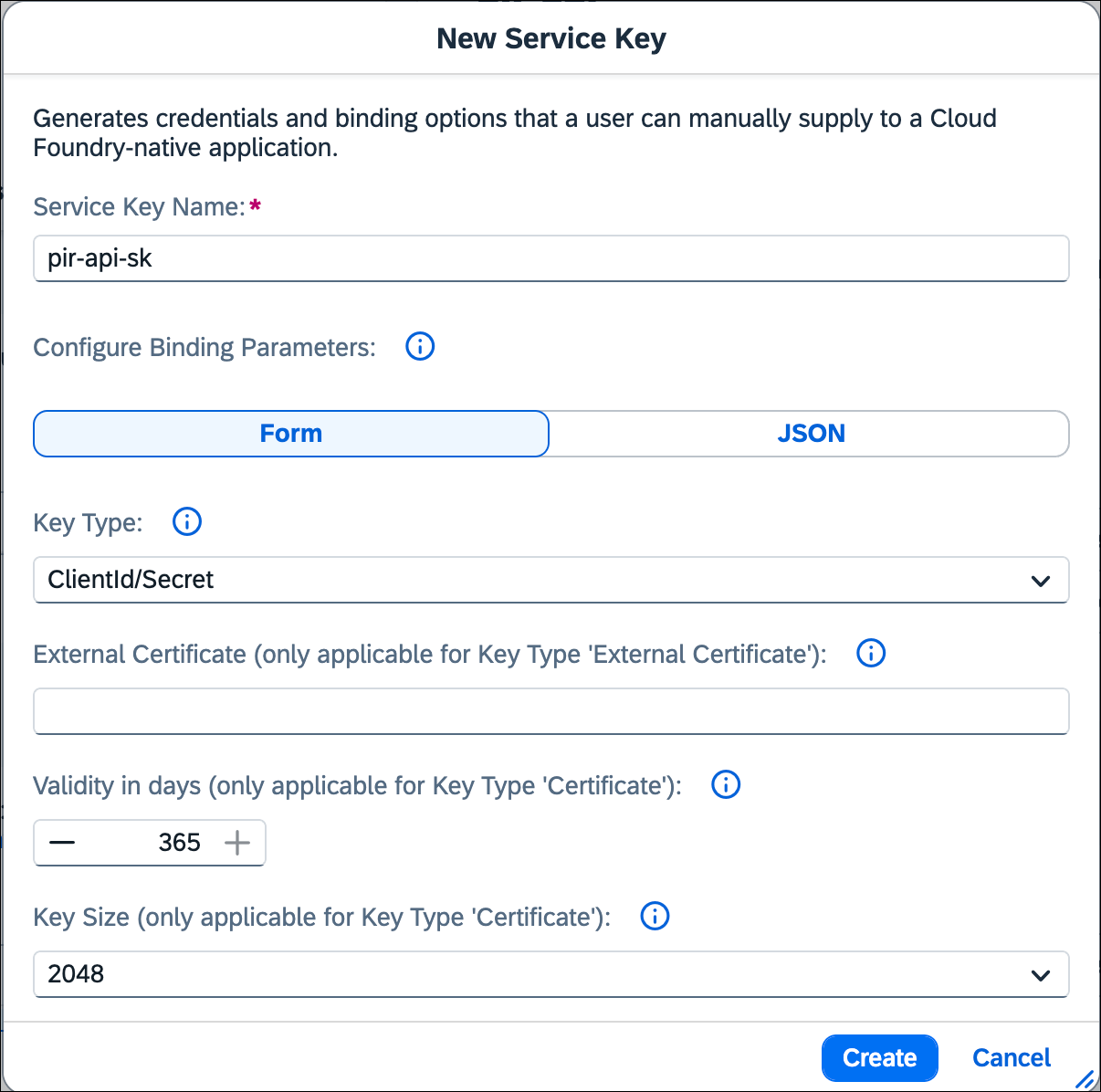
Then, assign a suitable Service Key Name, as shown below, and adjust the parameters if necessary. (We’ll leave the parameters unchanged in our example.) Then, click Create.
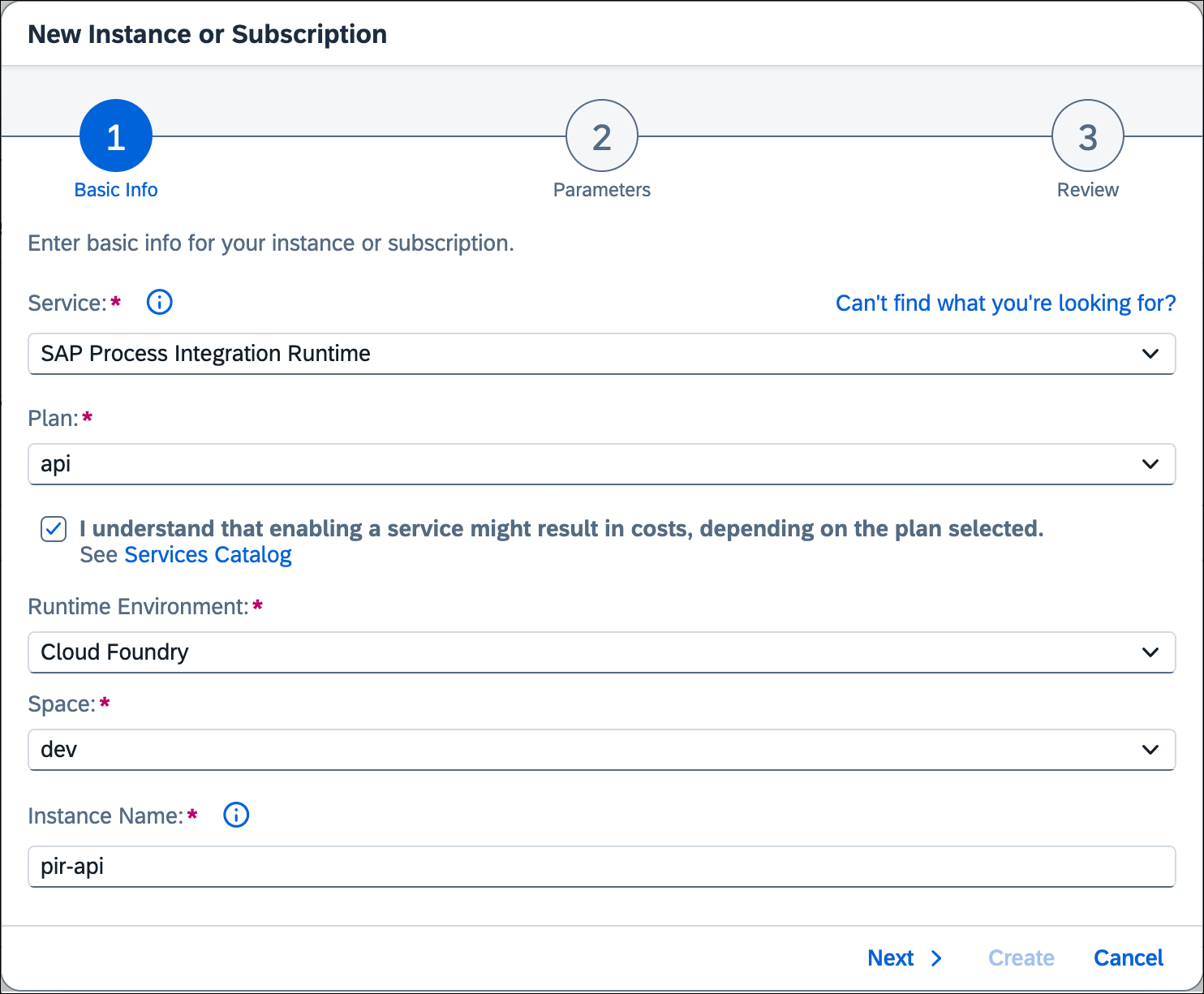
You can control the SAP Alert Notification service via an iFlow, which reads the message processing log via the Cloud Integration OData API and transfers it (either filtered or unfiltered) to SAP Alert Notification. To do this, you must create a service instance of the SAP Process Integration Runtime with the API service plan.
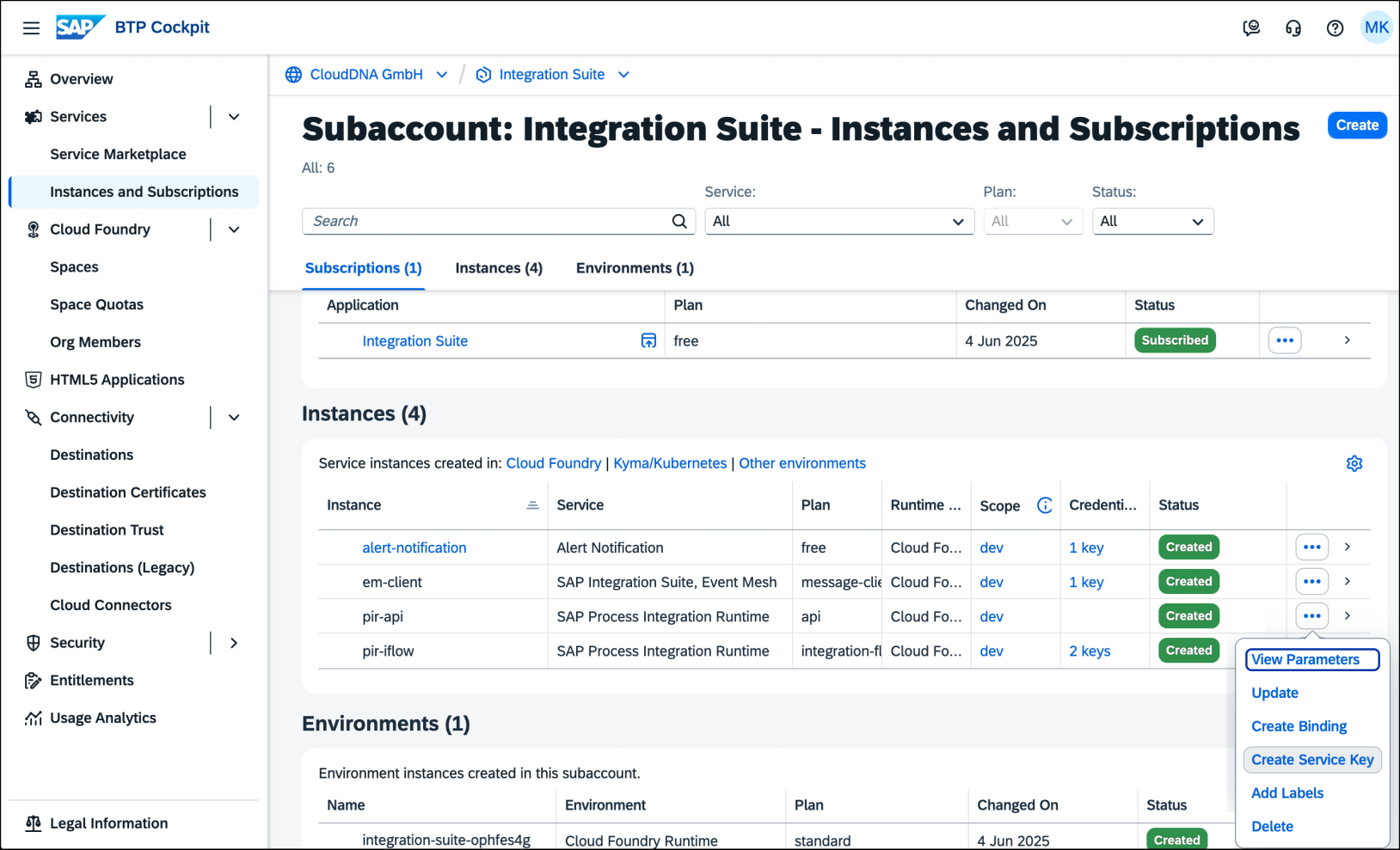
Next, create a service key for this service instance.
Then, assign an appropriate Service Key Name as shown in the following figure, select ClientId/Secret as the Key Type, and click Create. At that point, you’ll have created the conditions that are necessary for integration between Cloud Integration and SAP Alert Notification.
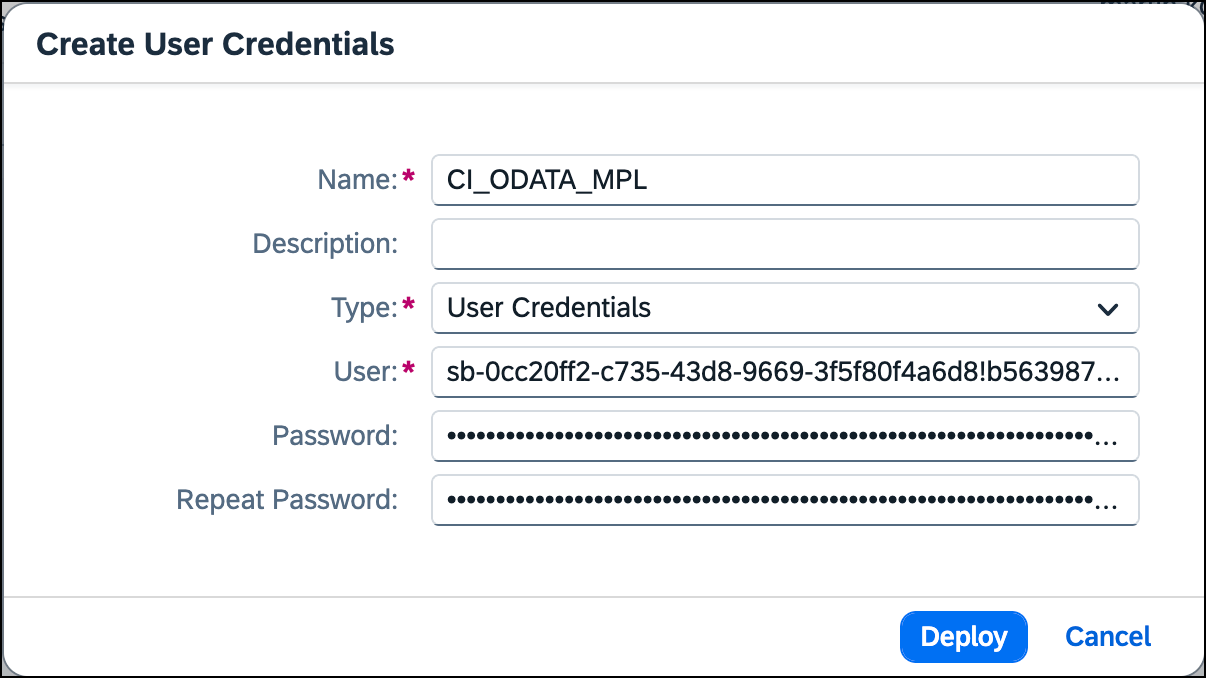
Next, you need to create the security artifacts for the service keys you previously created in Cloud Integration. Start by creating the user credentials for OData API access, as shown. Enter any Name you like, select User Credentials as the Type, and copy the ClientId of the service key into the User field and the ClientSecret into the Password field. Finally, click Deploy.
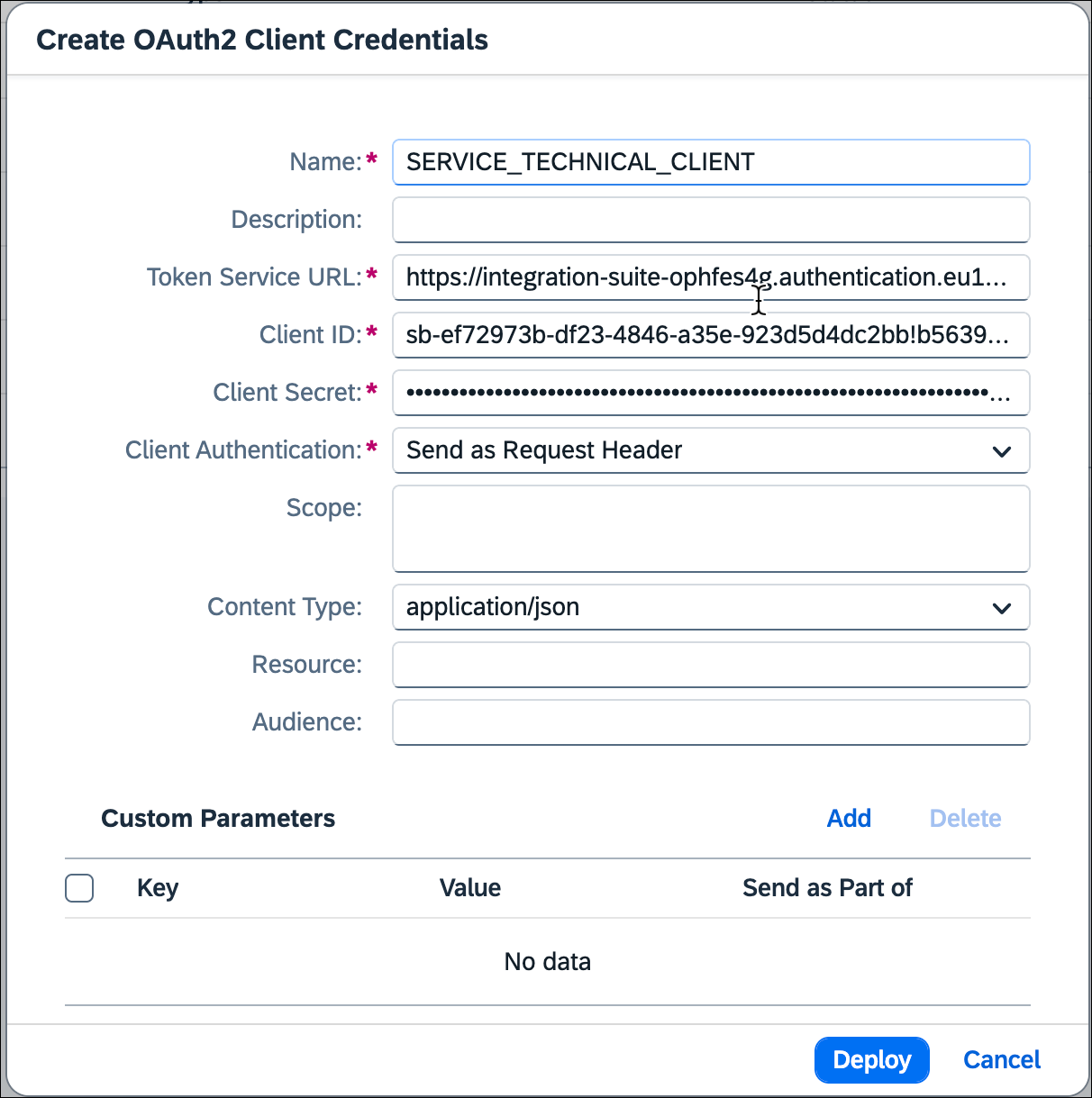
Then, you need to create another security artifact. Select the OAuth2 Client Credentials type, enter “SERVICE_TECHNICAL_CLIENT” as the Name (which will also be used in the iFlow), and copy the Token Service URL, Client ID, and Client Secret from the service key you created for SAP Alert Notification. Finally, click Deploy.
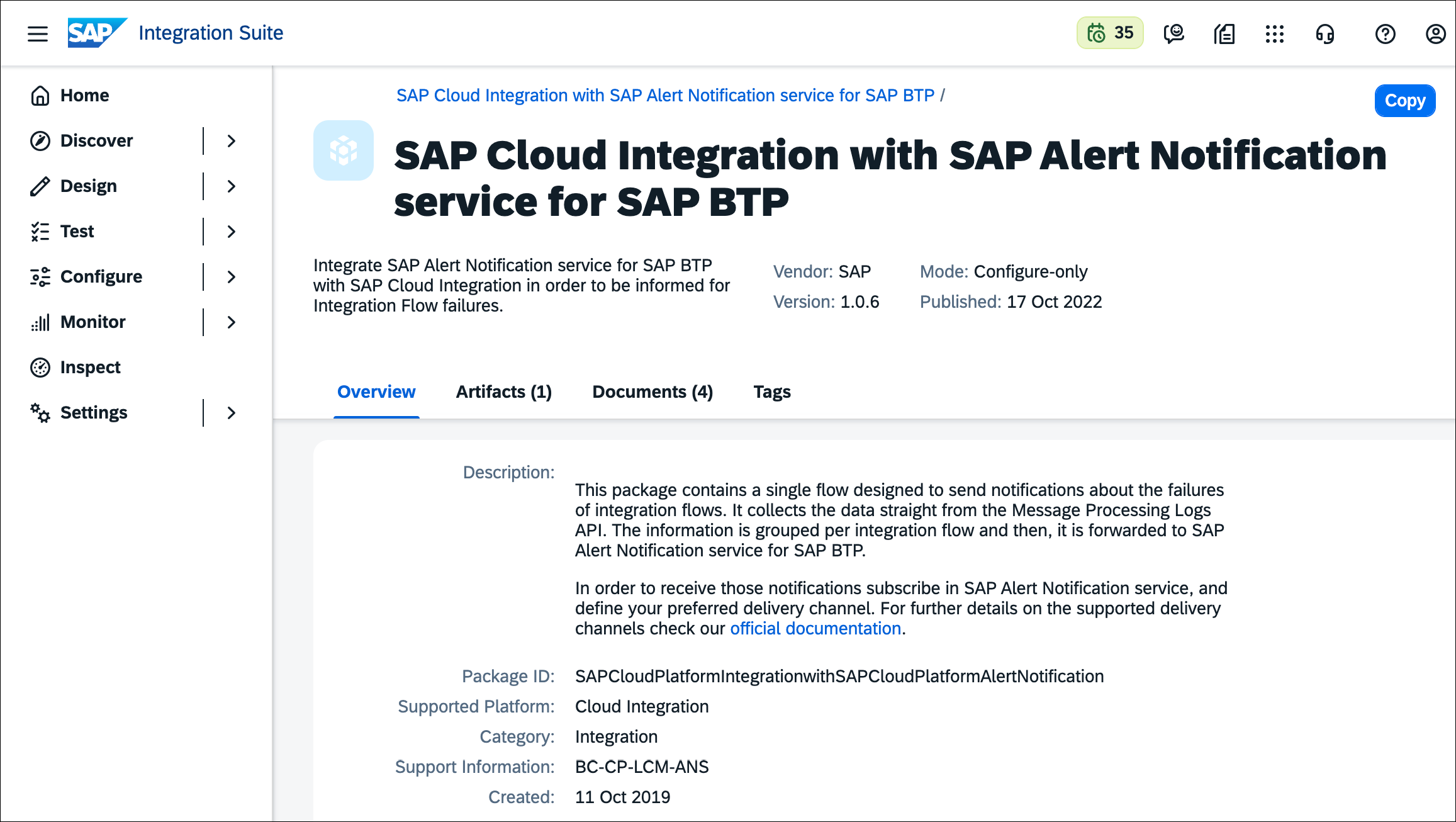
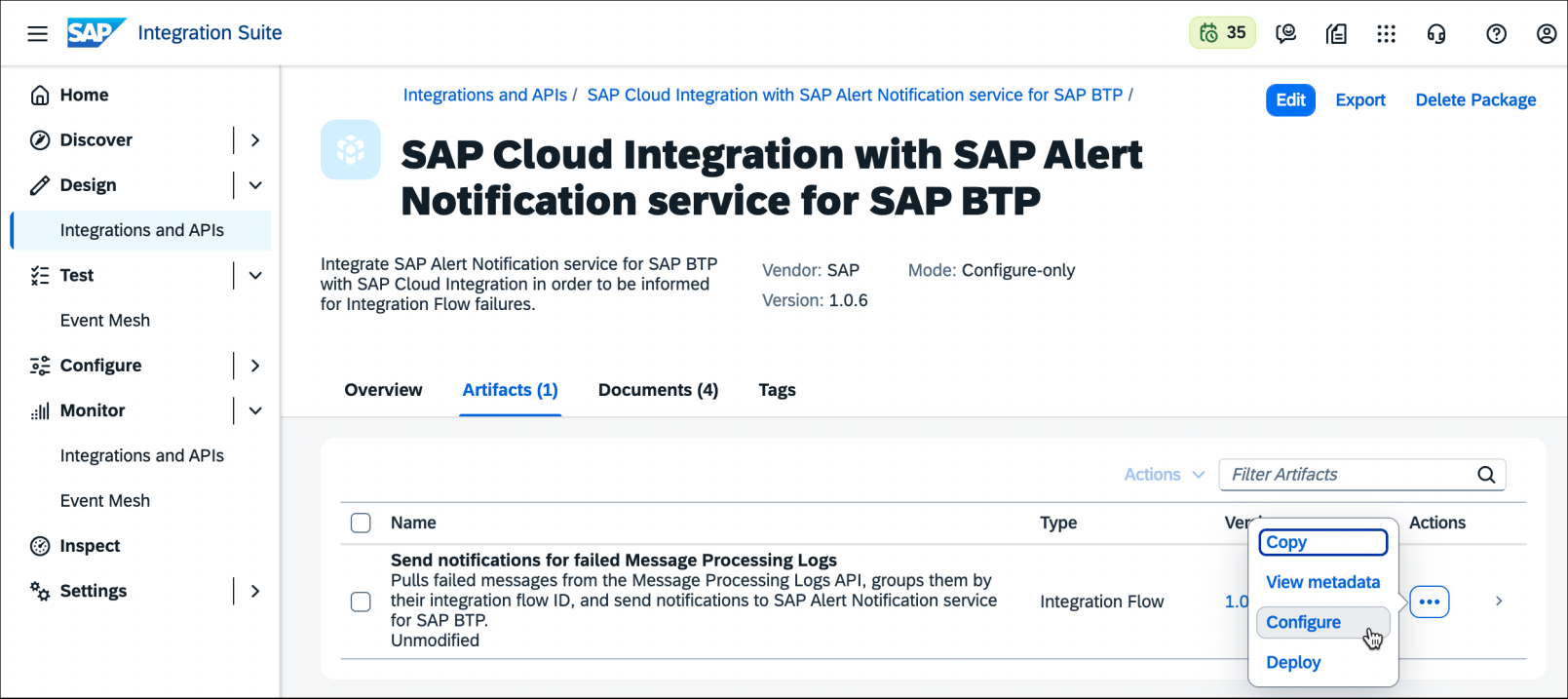
SAP provides an integration package for integration with SAP Alert Notification that you simply need to copy and configure. In the side menu, navigate to Discover > Integrations, search for the “SAP Cloud Integration with SAP Alert Notification Service for SAP BTP” package, go to the package details, and click Copy (see below) to transfer the integration package to your Cloud Integration instance.
In the side menu, navigate to the Design > Integrations and APIs area, open the integration package you copied earlier, and go to the Artifacts tab (see next figure). There, you’ll find an iFlow named Send notifications for failed Message Processing Logs. Click on Configure under Actions.
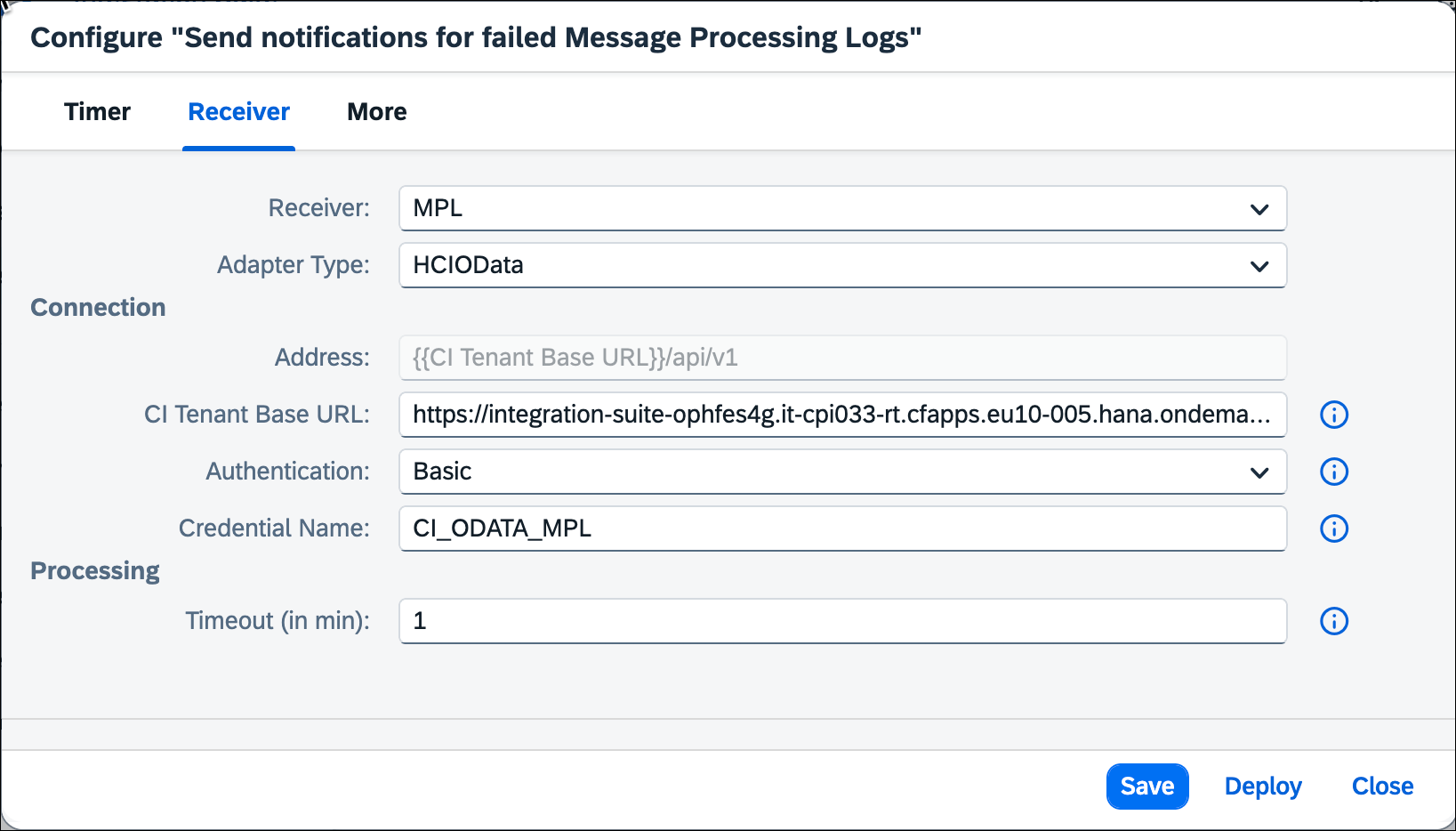
Next, open the Receiver tab (see following figure) and copy the URL of the Cloud Integration tenant management node into the CI Tenant Base URL field. Then, enter the name of the user credentials you created earlier for the Process Integration API service instance into the Credential Name field.
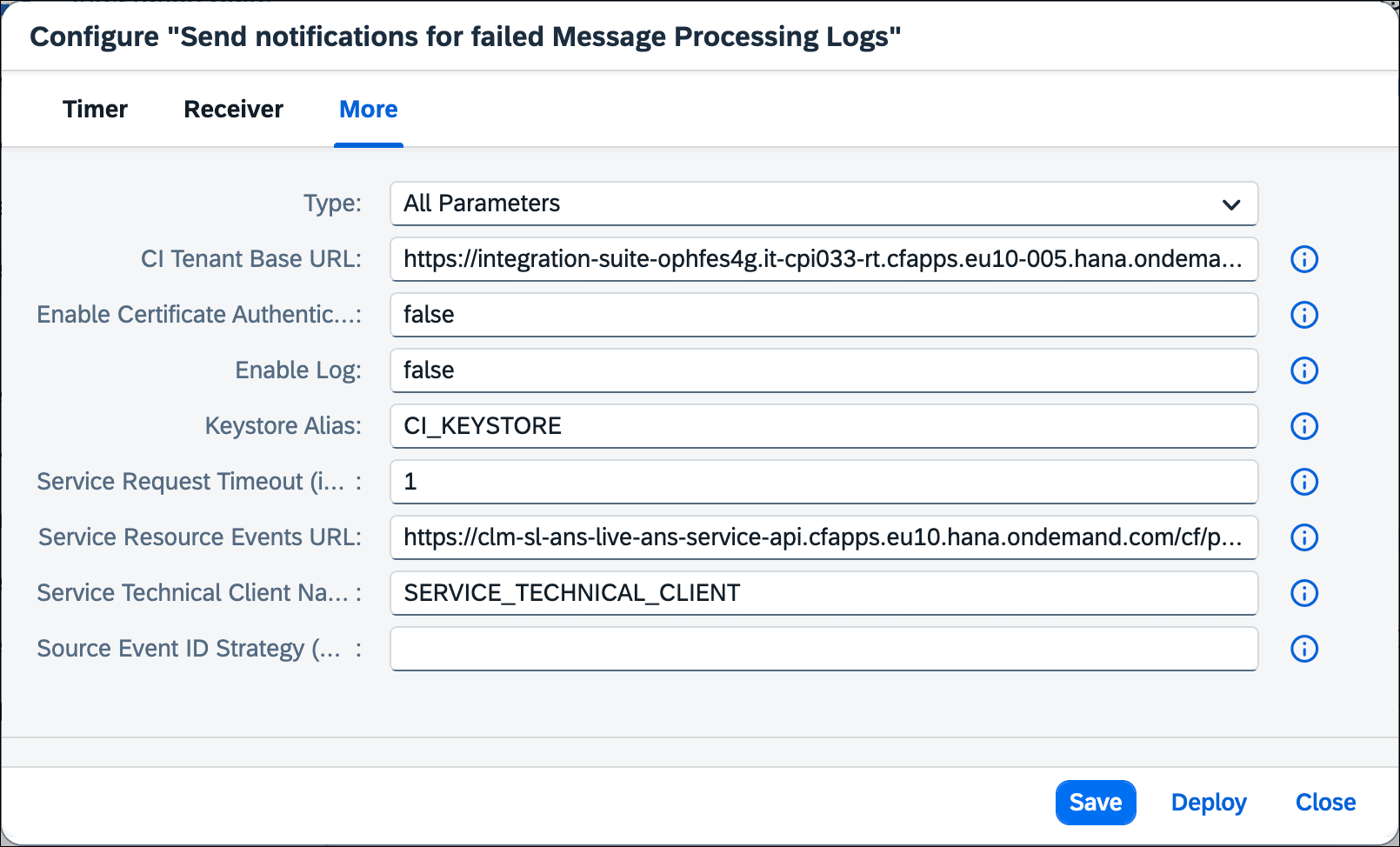
Then, open the More tab (see the figure below), which is where the connection to SAP Alert Notification is configured. The CI Tenant Base URL is taken from the Receiver tab, but you’ll need to copy the URL from the service key of SAP Alert Notification that you previously created into the Service Resource Events URL field. Add the “/cf/producer/v1/resource-events” path to this, and finally, click Save and then Deploy.
At this point, you’ve learned all the steps required to ensure that incorrect messages are transferred to SAP Alert Notification. However, depending on the implementation of the iFlows, messages may still be saved with the status Completed even if an error occurred during processing due to improper use of exception handling.
Learn SAP BTP in Our Rheinwerk Course!
What is SAP Business Technology Platform and what can it do? Get all the information you need in this course. Take a tour of the platform’s tools and services for development, integration, analytics, data management, and more. Learn directly from the experts and see SAP BTP in action with practical demos! Get access to course recordings by clicking the banner below.
Editor’s note: This post has been adapted from a section of the book SAP Cloud Integration Cookbook: Advanced Cloud Integration with SAP Integration Suite by Martin Koch, Thorsten Reisinger, and Marc Urschick. Martin is the managing director of CloudDNA GmbH, an SAP partner in Austria. Thorsten is an integration developer and solution architect at CloudDNA GmbH. Marc is a development lead at CloudDNA GmbH.
This post was originally published 8/2026.




Comments