

If you regularly work with the SAP GUI in SAP S/4HANA, creating a personalized Favorites menu is one of the easiest ways to save time.
Instead of navigating through the SAP Menu every time you need a transaction, you can keep your most frequently used transactions, files, and even web links in one convenient location. In this post, you'll learn several ways to build and customize your Favorites menu, whether you already know the transaction code or prefer to browse the SAP Menu.
Unlike the SAP Menu, the Favorites menu is your personal menu. In other words, it’s a menu that you can freely design and set up as you would your living room. Almost all SAP users add their transactions to the SAP Easy Access window as favorites, and you should too.
You can enter not only transactions but also links to files, subfolders, and web addresses. Do you use SAP GUI and SAP Fiori apps at the same time? With web addresses, you can also integrate links to apps in your favorites.
Import Ready-to-Use Favorites Menu
Before you create your own Favorites menu, here’s the first tip: You don’t need to reinvent the wheel. Have you perhaps already seen a wonderful Favorites menu from a nice colleague set up just the way you need it? Great! Your colleague can download the Favorites menu as a file in the SAP Easy Access by choosing More > Favorites > Download to PC and then copy it to a USB stick or e-mail it to you. You then select More > Favorites > Upload from PC at your workstation, and you have the same favorites as your colleague.
By default, the Favorites folder is empty. Now we’ll enter some general transactions as examples, which are briefly introduced here:
- Transaction SU3 (Maintain Users Own Data): You use this transaction to specify your personal information, such as default values. The abbreviation SU stands for system and user.
- Transaction SU01D (User Display): In many places, SAP S/4HANA often only shows a cryptic username instead of a real name, for example, when SAP S/4HANA locks the processing of data for you because another user is currently processing it. You then ask yourself: Which user is hiding behind the cryptic username? With Transaction SU01D (User Display), you can find the matching real name to the SAP username.
- Transaction SBWP (SAP Business Workplace): In the SAP system, you may receive emails and other messages. With this transaction, you display messages or compose SAP system-internal messages to other SAP users. The codes we’ve discussed in this section are the technical abbreviations for transactions that you’ll use in the next section.
If You Know the Transaction Code
In this section, we’ll cover a quick method for creating favorites that works only if you know the transaction code.
Follow these steps:
1. If necessary, switch to the SAP Easy Access window.
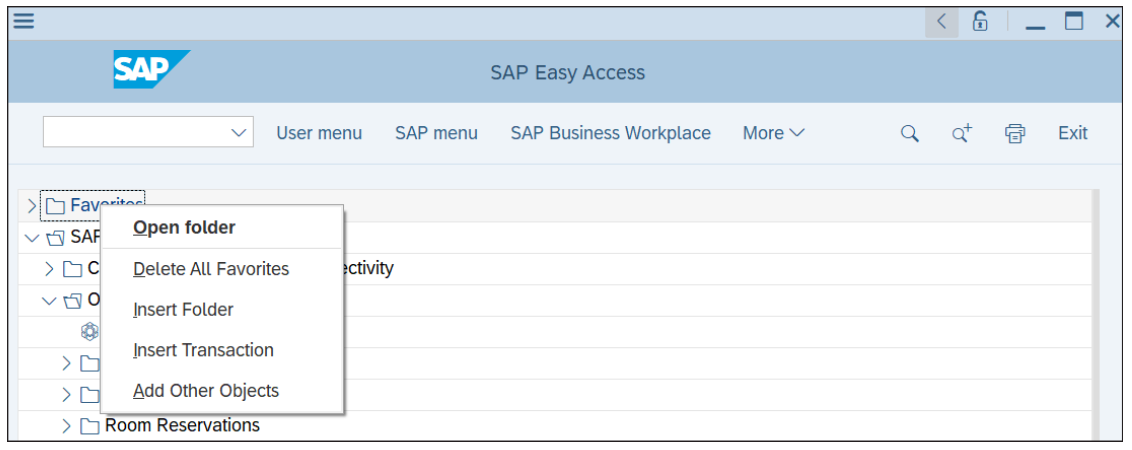
2. Now for an elegant right-left combination: right-click on the topmost Favorites folder, and select Insert Transaction from the context menu (see the figure below). The SAP system will ask for the transaction code in a new window.
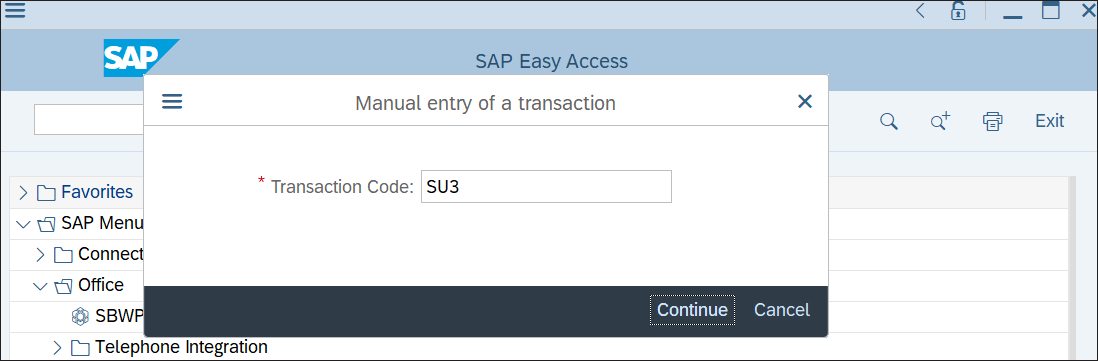
3. Enter the transaction code here, for example, “SU3”, as shown in the next figure, and press the (Enter) key. The window will now close, and the new entry will immediately appear in the Favorites menu.
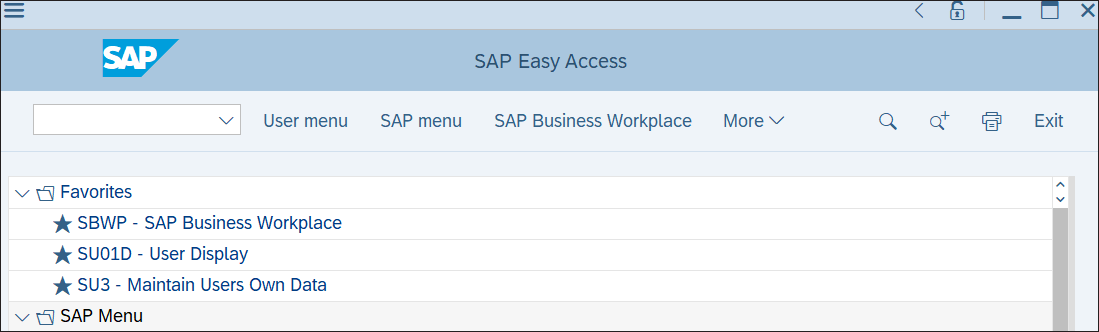
4. Repeat the previous three steps for Transaction SU01D (User Display) and Transaction SBWP (SAP Business Workplace). The screen will look like this.
If You Don’t Know the Transaction Code
Don’t know the transaction code? Just click through the folders in the SAP Menu until you can see the desired transaction. You can also add this transaction to the Favorites menu with the drag and drop method, which follows these steps:
1. For our example, open the Office and Appointment Calendar folders in the SAP Menu. Here you can see Transaction SSC1 (Owner), as shown.
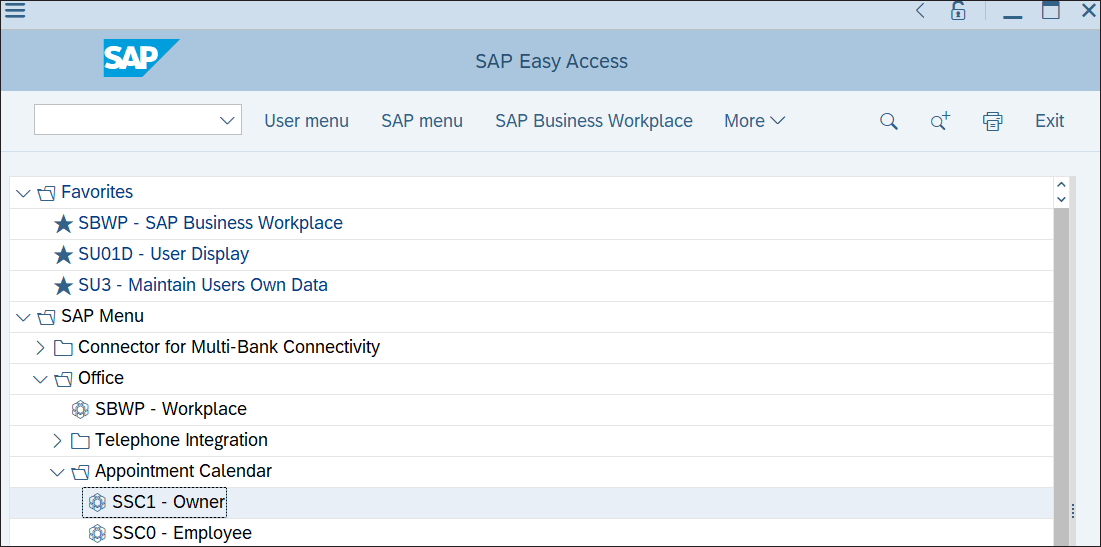
2. Click (once, not twice) on SSC1 - Owner, and hold down the left mouse button.
3. While holding down the left mouse button, drag the SSC1 - Owner entry to the top of the Favorites folder, and release the mouse button.
Even More Options
In our case, the drag-and-drop path was very short. If it’s longer and more cumbersome, there is a better alternative: right-click on the transaction entry in the SAP Menu, and then select the Add to Favorites menu option.
Conclusion
A well-organized Favorites menu can make navigating SAP S/4HANA much faster and more efficient, especially if you rely on the same transactions every day. Whether you import an existing favorites list, add transactions by code, or use drag and drop from the SAP Menu, taking a few minutes to customize your workspace can save you countless clicks over time.
Editor’s note: This post has been adapted from a section of the book Using SAP S/4HANA: An Introduction for Business Users by Wolfgang Fitznar and Dennis Fitznar.
This post was originally published 8/2026.





Comments